

Getting Things Done - GTD
How to Manage Your Clients with GTD
AUTHOR: María Sáez
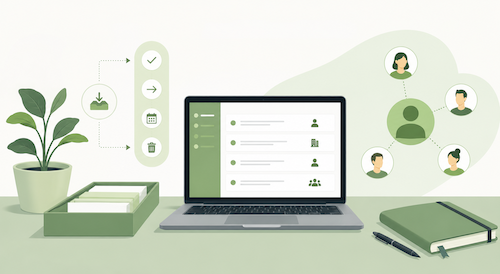
If you’re a freelancer, a consultant, or run a business with external clients, at some point you’ve probably come across a question that Getting Things Done doesn’t explicitly address: Where do my clients fit into the GTD system?
It’s a question that several FacileThings users have asked us over the years, and it’s put us in a bind. Not only because it doesn’t apply to our personal situation (and so we don’t have an answer based on our own experience), but also because David Allen doesn’t address it directly either. His book explains everything about capturing, clarifying, organizing, and reviewing, but there isn’t a chapter titled “What to do with your clients.” Is each client a project? An area of focus? A context? All three at once?
We decided to investigate this in depth: we reviewed official GTD sources, advice from certified coaches at the David Allen Company, and discussions among advanced practitioners in forums and blogs. This article is the result of that research.
Starting point: What GTD says about clients
David Allen doesn’t talk about clients directly, but the building blocks for managing them are all there. The trick is knowing which tool in the system corresponds to each aspect of the relationship with a client.
A customer has at least three simultaneous dimensions:
- There are things you need to do for him (tasks and projects).
- There are things you’re waiting from him: approval, payment, a file, a response.
- There are things you want to talk to him about the next time you see or speak to him.
These three dimensions naturally map onto three GTD lists: Next Actions, Waiting For, and Agenda. Before looking into more complex structures, it’s worth making sure these three are working well for each client.
Kelly Forrister, a senior coach at the David Allen Company, describes it this way on the official GTD forum: she has an Agenda list for “Robert” with items to discuss, and about a dozen items Robert has pending on her “Waiting For” list. When they have a meeting, she checks both lists. Simple, but effective.
The most common mistake: making the customer an Area of Focus
The most common temptation is to create an Area of Focus for each client. After all, a client is something you “need to maintain,” something that comes with responsibilities, something that takes up mental space. Isn’t that exactly what defines an Area of Focus?
Not exactly.
Areas of Focus in GTD are broad categories of responsibility that help you assess whether your system is balanced: “Health,” “Family,” “Finances,” “Professional Development.” If you have fifteen clients, creating fifteen Focus Areas bloats the picture until it becomes useless: instead of giving you perspective, it just adds noise.
What does work is creating a single Area of Focus that represent the “client work” part of your life: “Active Clients,” “Service Delivery,” “Freelance Work.” This area puts all your clients into one category, rather than listing them individually.
Forrister and Meg Edwards make this explicitly clear on the official GTD podcast: when an Area of Focus generates a lot of projects, the correct interpretation is that that area is particularly active right now, not that it needs to be broken down into smaller areas.
There’s a reasonable exception when you have very few but very large clients (two or three strategic accounts that define your business). In this case, treating them as individual Areas of Focus may make sense. But that’s the exception, not the rule.
The Four Ways to Organize Your Customers
Now that we understand what clients are not in GTD, let’s see what they can be. The GTD community has identified four main patterns.
Pattern 1: One project per client
The simplest approach: each client, or each active engagement with a client, is a GTD project. If you’re building a website for Acme, “Website for Acme” is a project. When it’s finished, you close it.
It works well when you have a small number of clients with specific, well-defined tasks. The overview is clear, the filing system is organized, and it aligns well with the GTD definition of a project: something with a recognizable and achievable outcome.
It gets complicated when the client relationship is ongoing and there’s no clear “end result.” A monthly consulting engagement, a retainer agreement, or an account that’s been active for years (that’s not a project; it’s an ongoing relationship). Forcing this situation into a project breaks GTD principles, and not only does it become unmanageable, but it also results in a project that never closes.
Pattern 2: One folder per client that groups their projects
Instead of treating the client as a project, you treat them as a folder or container that groups all their active projects. Under “Acme,” there might be three ongoing projects; under “Baker & Co.,” there might be one. The folder exists for the duration of the relationship; the projects within it come and go.
This is the preferred method among more advanced users of OmniFocus, Things 3, Todoist, or FacileThings.
The key advantage is that the client relationship remains visible even if there aren’t any active projects at the moment; something that matters a great deal to consultants and those who manage recurring accounts. The folder is there, even if it’s empty. During the Weekly Review, you see it, and that alone can prompt a valuable question: Should we reactivate this relationship?
The limitation is that your tool needs to support hierarchies. OmniFocus handles them very well; Things 3 supports them through Areas and Projects; Todoist implements them as projects and subprojects. FacileThings doesn’t have project folders, but projects can be grouped into goals (the goal “Provide the best service to Acme” can link all the Acme projects); you can also create a project with subprojects. If you use a flatter tool, this pattern is difficult to implement nicely.
Pattern 3: One tag or context per client
Instead of creating a hierarchical structure, you apply a tag to all tasks related to a client, regardless of which project they’re in. “@acme,” “@baker”. This way, you can filter by client across all projects without altering how your projects are organized.
Mike Vardy (Productivityist) and Stefan Zweifel describe variations of this approach in Todoist and Things 3, respectively. The idea is that an “acme” filter instantly shows you everything pending for that client, regardless of which project each task belongs to.
It works especially well when you’re working on projects that involve multiple clients at once, or when you need to quickly prepare for a meeting: a single filter gives you a complete overview of that client in seconds.
The problem is that most tools require manual tagging. Tags lose their value if they aren’t applied consistently, and over time they become noise.
There’s also a GTD purity warning: in the original methodology, contexts refer to the resource or condition needed to perform an action (tool, location, energy level), not to the person for whom you’re doing it. Using client-based labels as “contexts” is a pragmatic extension of the system, valid but not canonical.
Pattern 4: Client-specific reference folder, separate from the task manager
This approach is not an alternative to the previous ones but rather a complement to them: a folder in a file-sharing service (Dropbox, Google Drive, iCloud) or a note-taking tool (Notion, Obsidian, Evernote) that contains all the supporting materials for that client (contracts, briefings, meeting notes, delivered files), completely separate from the task manager.
The task manager only has actions. Notes only have context and references. Files only have documents. And all three are linked together when necessary.
Carl Pullein calls it “hard edges”, clear boundaries between systems, and he makes a strong case for it: when everything is mixed together in one place, the system becomes cumbersome, slow to review, and difficult to trust.
In his official guide to reference materials, David Allen recommends using a single alphabetical filing system for all general reference materials, and separate project support folders for active materials. For an active client, this means a live support folder; when the client’s project is closed, the materials are moved to the general archive.
What to do about what you expect from the client
One of the most common sources of friction in client management isn’t what you have to do, but what you expect from them. The client who doesn’t approve the budget. The one who doesn’t send the copy. The one who promised a kick-off meeting but doesn’t confirm a date.
GTD has a clear answer for this: the “Waiting For” list. Anything that depends on someone else should go there, along with the date you delegated or requested it, and a reminder to follow up if it doesn’t come through.
For those who manage multiple clients, the most practical approach is to break down the “Waiting For” list by client, either as sublists or as tags. That way, before you contact a client, you can quickly review everything you have pending for them.
Forrister is straightforward about active follow-up: if you care about getting things done, following up is your best safety net. Sometimes an active reminder is the only thing that reminds the client they still have something pending with you. It’s simply a matter of closing the loop.
How to integrate clients into the Weekly Review
The Weekly Review is where this whole structure comes together. It’s the time to review not only what you have pending, but also whether your relationship with each client is in good shape.
A “Key Clients” checklist during the Weekly Review (which David Allen explicitly mentions as an example of a useful checklist in his book) serves precisely this purpose: to go through each active client and ask yourself if there’s anything you’ve missed, if there’s anything you should start, or if there’s any follow-up you haven’t done yet.
It’s not about reviewing every task for every client. It’s about making sure that no key client is being overlooked simply because there hasn’t been any visible activity this week.
Which pattern should you choose?
There’s no one-size-fits-all answer, because the best approach depends on how many clients you have, whether your interactions are one-time or ongoing, and which tool you use. But here are some practical guidelines:
If you have fewer than five active clients, Pattern 1 (project-by-client or project-by-assignment) is probably sufficient, combined with subdivided “Agenda” and “Waiting For” lists.
If you have between five and fifteen clients, Pattern 2 (a folder for each client containing their projects) offers the best overview without overcomplicating the system, especially when combined with tags for cross-filtering and a separate reference folder.
If you have many clients but only have sporadic or brief interactions with each of them, Pattern 3 (tag or context per client) may be a good fit.
If you have more than fifteen active clients and your relationships with them are more substantial, Pattern 4 (parallel support system) would allow you to set aside GTD for managing commitments within a broader knowledge system.
In every case, the basic structure is the same: a Next Actions list for the tasks you need to perform for your clients, an Agenda list organized by client for the tasks you need to discuss, a “Waiting For” list broken down by client for the tasks that depend on them, and a checklist of active clients that is reviewed weekly.
o – O – o
Final note: GTD wasn’t specifically designed to manage client portfolios, but it offers a set of tools (projects, contexts, focus areas, Agenda and Waiting for lists) that practitioners have creatively adapted to this reality. The techniques presented in this article are the result of those adaptations, validated by thousands of freelancers and consultants over the years. The adaptation you make may not resemble these, yet it may work perfectly for you.
Help us expand this material. How do you manage your clients?

2 comments
I use the Collaborator context @NameOfClient on any and every entry (Next Action, Waiting for, etc) Since I put the client's name in any entry anyway, I hve made it a habit to insert the "@" in front of a Client's name anytime I type it. It took me a while to figure out a system that would work, but I have been doing this for a few years now.. I settled on this (even though I'm not using it only for when I am meeting with them) for the same reason listed under #3 in the article. I can easily look at any and all items related to a given client and still keep the Next Action, Project, Waiting for, etc. structure in tact. And I put their company logo as their profile picture so when I am looking at the Day's Agenda or my List of Next actions, I can see at a glance which clients I will be working on.
I use the Collaborator context @NameOfClient on any and every entry (Next Action, Waiting for, etc) Since I put the client's name in any entry anyway, I hve made it a habit to insert the "@" in front of a Client's name anytime I type it. It took me a while to figure out a system that would work, but I have been doing this for a few years now.. I settled on this (even though I'm not using it only for when I am meeting with them) for the same reason listed under #3 in the article. I can easily look at any and all items related to a given client and still keep the Next Action, Project, Waiting for, etc. structure in tact. And I put their company logo as their profile picture so when I am looking at the Day's Agenda or my List of Next actions, I can see at a glance which clients I will be working on.
Hi Linda,
I think you’re making great use of the options that FacileThings gives you for managing clients. When you use tags with @, the agendas are generated automatically; and the possibility of adding a custom image to each collaborator (logo or photo) helps distinguish client-specific tasks in the lists at a glance.
Thank you very much for sharing your experience.
Best regards,
María
Hi Linda,
I think you’re making great use of the options that FacileThings gives you for managing clients. When you use tags with @, the agendas are generated automatically; and the possibility of adding a custom image to each collaborator (logo or photo) helps distinguish client-specific tasks in the lists at a glance.
Thank you very much for sharing your experience.
Best regards,
María